


When your phone speaker stops working, it can be frustrating, especially if you rely on it to communicate with others. This inconvenience appears at the most inconvenient times, whether you’re trying to take a call, watch a video, or listen to music. Many people in the community have faced similar issues, asking what steps they should take to resolve the problem. In this article, we will explore several troubleshooting tips and solutions that can help you bring your phone back to working condition.
- Check volume and mute settings, ensure not connected to Bluetooth or headphones.
- Restart device and install any available software updates to fix software-related audio glitches.
- Inspect and gently clean speaker grills; if unresolved, seek professional hardware diagnostics or repair.


There are various options available when addressing speaker issues. First, consider the basics: check if your phone is muted or if the volume is turned down. A simple oversight here can cause your device to appear unresponsive. For those who have already tried turning the volume up and checking the settings, we will delve into more advanced troubleshooting methods that can be easily implemented. Some solutions may involve a minimal distance between your device and other potential sources of interference, especially if you are using a wireless system.
In sections that follow, we will detail methods to select the right course of action based on whether your speaker fails to work entirely or just appears muted at times. We will discuss how to activate sound features, reset settings, and when it might be necessary to rethink your device’s compatibility with certain accessories like wired headphones or charging cords. By the end of this guide, you will have the necessary steps to ensure your phone’s speaker functions effectively, highlighting common pitfalls along the way. So, let’s get started and see what we can do to resolve your speaker issues!
Steps to Diagnose Phone Speaker Issues
When your phone speaker stops working, it can be frustrating, especially if you’re trying to talk to someone. Sometimes, it’s just a simple fix, and you can get back to using your device in no time. Here, we’ll go over some effective steps to diagnose phone speaker issues that anyone can follow.
First, check the volume settings. If the volume is turned down too low, you might not hear any sound. Go into the volume settings menu and make sure it’s not on silent or vibrate mode. Sometimes, people forget that they’ve made their phone silent, leading to confusion when the speaker doesn’t work. If you can low your phone’s volume in the day to avoid disturbing anyone around you, however at night it might show how low you set it for the peaceful moments.
Next, try turning your phone off and back on again. This is a common troubleshooting step that usually helps reset any software glitches that might have caused the speaker to fail. If the problem persists, you might want to check for software updates. Visit the settings to see if there’s an update available. Some users find that updating their device solves many issues.
Another great step is to check the physical connections. Sometimes, dirt or debris can accumulate in the speaker grill at the bottom of your phone. Use a soft brush or compressed air to clean it gently. This simple cleaning process could allow your speaker to function properly again without needing any further intervention.
If you’re still having issues, consider whether the problem might be with a specific app. Play media from different applications to understand if the speaker works in the background or if it fails completely. If it’s one app that shows trouble, you might want to uninstall and download it again.
In certain cases, the speaker might not be powered correctly. Check if there are any loose connections, or visit a member at your local service center for a more in-depth check. Online forums can also provide advice and answers if you find yourself stuck. For instance, a product like the Smartphone Speaker Booster can enhance audio output if the internal speaker is weak.
In conclusion, there’s usually a solution to speaker issues. By following these steps, you can often identify the problem and potentially fix it on your own. Remember, you’re not alone in this, and with a bit of patience, your phone’s audio can be back to normal in no time.
Check Volume and Mute Settings
When your phone speaker doesn’t seem to work, the first thing to do is to check the volume and mute settings. You might think it’s a bigger issue, but sometimes, it could be as simple as a muted option or low volume. Take a moment to dial down the settings and ensure that the audio levels are at a minimum that allows you to hear your voice in calls and during media playback.
To quickly check these settings on a smartphone, look for volume buttons on the side of the device. If you’ve been watching videos or using apps that require audio, make sure to toggle the settings back to audio mode. Sometimes, programs may automatically mute your device when connected to a network or during voice commands. You can even ask your smart assistant to “unmute” or “turn up the volume” if needed.
If you’ve already checked and everything seems fine, consider that some compatibility issues with different services could also cause audio problems. For instance, if your phone is using Reolink or a similar service, ensure that they’re not interfering with the audio output. In some cases, a Bluetooth connection might be the culprit, so make sure your phone isn’t silently connected to any external speakers or headphones.
When troubleshooting, don’t forget about third-party devices and cables. Sometimes a faulty cord may affect the sound delivery. Either way, if your phone still doesn’t ring or hear incoming calls clearly, it might be time to check the compatibility with your current apps and services. Be sure to explore options on Amazon, like the Anker Soundcore Bluetooth Speaker or Bose SoundLink Micro, to enhance your audio experience if needed.
Every moment counts, especially when you miss important calls or news updates. You must act quickly to address these issues for your phone’s functionality to match your expectations. If the problem persists, writing down all the steps you’ve taken might also help when seeking assistance from a technician or support member.
Inspect for Software Updates
When your phone speaker stops working, one of the first steps you should take is inspecting for software updates. Often, audio issues can stem from bugs in the operating system that can be resolved with a simple update. Doing this is quick and can solve common problems that prevent sound from playing through your device.
To check for updates, go to the settings on your device. Depending on your phone’s location in the menu, navigate to “About Phone” or “System.” Tap on “Software Update” and see if there are any available options. If there is an update, make sure you have a good network connection, plug your phone in to charge, and initiate the download. Restarting your system after the update can help ensure any changes are correctly applied. This step-by-step process often restores audio functionality.
However, if your phone remains silent after updating, you might consider additional troubleshooting. Sometimes the speaker itself could have moved or become disconnected, causing issues when trying to play audio. Connect with a specialist or consult online groups that focus on repairing devices. They can be a valuable resource for pointing out specific fixes if your microphone is also not picking up sound.
Thanks to advancements in technology, there are also many audio accessories available on platforms like Amazon to enhance your listening experience. Some popular options include portable Bluetooth speakers, like the JBL Flip 5, or wired solutions such as the AUKEY Omnia Mix, which can improve your setup without relying solely on your phone’s hardware. Learning to troubleshoot and connect these devices can give you peace of mind–knowing you have several ways to enjoy your audio, whether for a late-night movie or catching up on your favorite podcast.
Restart Your Device
When your phone speaker stops working, one of the simplest and most effective troubleshooting steps is to restart your device. This method has been known to solve a variety of technical issues, including audio problems. Restarting allows the operating system to refresh its settings and closing any programs that could be interfering with the speaker functionality.
To get started, locate the power button on your device. For most smartphones, this button is often on the side or back. Press and hold the button until you see the option to power off. Once the device is off, wait for a few seconds and then turn it back on. This process can take only a minute or two, and it’s often all that’s needed to fix issues with volume or connectivity.
In some cases, you might notice that the speaker lighting or notification dots do not respond. If that happens, it indicates that your phone needs a more thorough fix. Ensure that the device is not connected to any Bluetooth speakers or headphones before restarting. You can easily check this in your Bluetooth settings–if you see a connection there, turn it off before proceeding.
If problems persist, consider looking at recent software updates. Sometimes, a pending update from your device’s software or from specific apps like Alexa may improve functionality. Visit your settings and see if there’s an available update for your operating system or the audio programs. Keeping your device up to date is crucial for smooth operation.
Remember, restarting is often just a first step. If someone in your group mentioned these issues before, it might be good to follow up on their experiences with fixes they’ve tried. In different locations, network connectivity could impact how your device’s speaker works. Sometimes, it only takes a restart for everything to function properly again. Don’t be afraid to try this solution first; you might be surprised at how often it does the trick!
Test with Headphones or Bluetooth Device
If your phone speaker stops working, it’s essential to troubleshoot the problem systematically. One effective first step is to test with headphones or a Bluetooth device. This method helps you determine whether the issue lies specifically with the phone’s speakers or if it’s a more general problem related to sound output.
To begin, connect a pair of wired headphones or a Bluetooth device. If you’re using Bluetooth, ensure that the device is ready for connection and is paired with your phone. Once connected, play music or make a call to see if you can hear sound through these channels. If everything works flawlessly, your phone speakers might just be unresponsive, and you can proceed to the next troubleshooting steps. On the other hand, if you still encounter noise issues, this might indicate a deeper, common network or software problem.
Sometimes, the speaker issue can stem from an app or service running in the background. In this case, you might need to restart your device. Simply hold the power button and select restart. After your phone reboots, check the state of your speakers again. If there were commands waiting for a response, this might clear them as your phone refreshes itself.
For those thinking about product solutions, you can find a variety of headphones and Bluetooth devices on sites like Amazon. For example:
In general, testing with a different audio output can help you rethink the location of the issue, guiding you to better solutions. If you’re still having trouble after these tests, consider looking up troubleshooting guides on Google, which offer services tailored to your specific smartphone brand. Remember, your connection setup with the router or network may also affect audio output, so it’s something worth checking, especially if you use voice commands or streaming services regularly.
Common Hardware Problems and Fixes
Many users encounter issues with their phone speakers, and understanding the common hardware problems can lead to better resolution. One of the first things to consider is the physical state of your speakers. If they are unresponsive, it may be due to dirt or debris obstructing the sound. Regular cleaning, especially in locations like the speaker grills, is essential. You can use a mini cleaning brush or compressed air to ensure that everything works correctly.
Another reason for speaker issues might be connectivity problems. Check that your phone is correctly connected to Bluetooth devices if you are using wireless speakers. Sometimes, simply restarting your device can resolve many issues. If connectivity is the problem, consider selecting your device again on the Bluetooth settings page.
Additionally, verify the volume settings on your phone. It may seem basic, but many users overlook this step. If your phone is in mute state or on a low volume, notifications may get missed. Adjusting the volume properly can often bring your speakers back to life. For those using Amazon, consider items like the Anker Soundcore Mini for external speaker choices that enhance your audio experience.
In severe cases, hardware problems may stem from factory defects. If you suspect this, you might need to transfer your phone to the manufacturer for detailed testing and possible repair. Some devices come with warranties that cover such issues, so check your documentation to see if you’re eligible instead of worrying about a hefty repair bill.
Lastly, running a hardware test through your phone’s diagnostics can also be a bonus step. Many devices have built-in testing features that can help identify issues related to both speakers and microphones. These diagnostics often provide a guide on how to fix problems, ensuring that you never have to face sound issues without options.
Debris in Speaker Grills
When it comes to smartphone performance, one common issue that users encounter is unresponsive speaker audio. This can often be traced back to a simple yet overlooked source: debris in the speaker grills. These grills, being sensitive to dust and dirt, could easily become clogged, making them silent or significantly lowering their audio output. Here’s exactly what you need to know about this issue and how to tackle it.
First, let’s understand the problem. When a foreign object or even common dust particles get trapped in the speaker grills, they can block sound waves, resulting in muffled audio or even complete silence. To tackle this, you must first assess the level of debris present. Use a flashlight to check the state of your phone’s speaker grills; if you notice any visible obstructions, it’s time to take action.
Your first option is to simply use a soft brush or a can of compressed air to gently clean the grills. Be cautious to avoid pushing any debris further inside. If you’re still having issues after cleaning, you might want to wait and see if it resolves naturally in a few hours. Sometimes, after a good feed of fresh air, the sound could return to normal without further intervention.
If debris was the main culprit, you might want to rethink your routine when it comes to keeping your phone clean. Consider using a phone case that covers speaker grills, or invest in products like Tech Armor Cleaning Kit or iKlear Screen Cleaner from Amazon, which are designed to safely clean electronics while preventing dust buildup.
In general, make it a habit to check and clean your device regularly. By taking these simple steps, you’ll not only enhance your phone’s performance but also ensure that you hear every hotword and notification loud and clear. After all, who wants to miss an important call because their phone was muted by a tiny object? Thanks to these easy maintenance tips, you’ll be able to enjoy seamless audio from your smartphones for many years to come.
Q&A:
What could cause my phone speaker to stop working?
There are several factors that could lead to your phone speaker malfunctioning. Common issues include software glitches, accumulated dust or debris in the speaker grill, or physical damage from drops or water exposure. It could also be related to your phone settings, such as being on silent mode or having the volume turned down completely. Additionally, if you’ve recently installed updates or apps, they could potentially interfere with audio output.
How can I troubleshoot my phone’s speaker issue?
To troubleshoot your phone’s speaker issue, start with some basic checks. First, ensure that your phone isn’t in silent mode and that the volume is turned up. Next, try restarting your device, as this can often resolve temporary glitches. If that doesn’t work, try using headphones; if sound comes through them, the issue may be with the speaker itself. Cleaning the speaker area with a soft brush or compressed air can help remove any dust blocking the output. If these steps don’t fix the issue, consider resetting your phone’s settings or checking for software updates.
What should I do if none of the troubleshooting steps work?
If you’ve tried all troubleshooting steps with no success, the problem might be more serious and could require professional help. It’s advisable to back up your data before seeking repairs. You can contact your phone manufacturer or visit a certified repair center. They will have the expertise to diagnose hardware issues, such as a broken speaker or internal damage, and advise you on repair or replacement options. In some cases, warranty coverage may apply, so it’s worthwhile to check your warranty status as well.
Is there a way to test if the speaker is physically damaged?
Yes, there are a few methods to test if your phone speaker might be physically damaged. First, try playing sound through your phone at different volume levels. Listen for any distortion or lack of sound, as this might indicate damage. Also, check for any visible signs of damage to the speaker grill. You can use sound apps that test audio output or run diagnostics if your phone has that feature. If you notice any unusual behavior or sounds, or if the speaker doesn’t respond at all, it may be time for professional evaluation.

Other Articles

Mastering Alexa Commands to Streamline Your Daily Routines and Save Time
7 Simple Tips to Fix Screen Mirroring Lag and Improve Performance Today

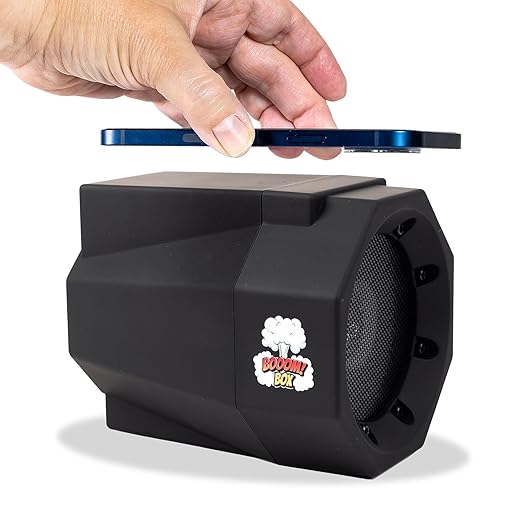
boom box. If the person you are talking with, has his phone on speaker, and is not close enough to his phone…..the sound gets muffled, on this devise..If the caller uses his phone next to his ear, in the regular manner, the boom box works fine.
Excellent choice to buy. This is a great product. It does exactly what they say it does. The sound is really good and is ten times louder then the original volume. That’s why I bought 3 of them. They may not be available forever so I stocked up on them. Great product and i made the right decision by purchasing three of them. Also there was a question a customer asked about whether the product works with a cell phone in a case and the answer is yes as long as you align up the cell phone with Mad Man boom box. The best way to do that is to move the cell phone around the boom box Mad Man speaker till it picks up the sound. I speak of experience because my cell phone is in a case and it worked very well. I think you will be pleased with what you hear.
The phone’s speaker must be turned on. Works as advertised, sound quality is very good. Would suggest some type of thin non skid covering on the area where the phone is placed to keep phone from vibrating off towards the front. Also, the covering should not be continuous, or it may attenuate the connection. The volume out of the Box is controlled by what you adjust your phones speaker volume to.
Great tips for troubleshooting phone speaker issues! Checking the basics like volume settings and physical connections can often solve the problem easily. Thank you for the helpful advice.
Great tips for troubleshooting phone speaker issues! Checking the basics like volume settings and cleaning the speaker grill could be the simple fix needed.
Great tips on how to clean and maintain phone speaker grills! It’s important to take care of these small details to ensure optimal audio quality.